Platform notes
italki classroom audio, teacher side
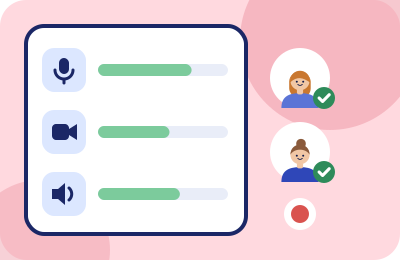
italki's own Classroom gives teachers a proper pre-lesson device check, a lesson-recording feature with real consent mechanics, and — because it lives in the browser — a clean place for a noise layer to plug in. Here's the audio tour.
The setup screen is your friend
Before each lesson in the italki Classroom, a setup page lets you test your microphone, camera and speakers and adjust devices; a welcome screen inside the Classroom offers the same check. This is layer four of our setup chain — the picker that decides what your student actually hears — so use it the disciplined way:
- Choose your microphone by name, never "default" — especially if you run a virtual microphone (more below).
- Speak a full sentence at teaching volume and watch the meter through the whole thing.
- Do the check a few minutes early. The setup page at :59 is a tool; at :00 it's a stress test.
italki's teacher requirements are modest — a microphone and webcam, with headphones recommended by italki (gear advice is theirs to give; ChalkLine stays on the software side). The requirement we'd add: know which of your machine's microphones is which, because the setup screen will happily believe you meant the webcam mic.
Recording: consent is built in, and that's a feature
The italki Classroom can record lesson audio — with mechanics worth knowing precisely, because they're unusually principled (all verified against italki's support docs, 2026-09-20):
- Both parties must consent. A recording only happens when teacher and student have given permission; you manage yours in Privacy Settings from the dashboard or inside the Classroom itself.
- Recording is browser-specific: the feature currently works in Chrome, Edge and Firefox. If your recordings silently don't exist, check which browser taught the lesson before blaming the platform.
Recording works in Chrome, Edge and Firefox (italki support docs, checked 2026-09-20).
Why this matters for audio: recorded lessons are where noise becomes permanent. A student replaying your explanation of the subjunctive will hear yesterday's lawnmower on every listen. If recording is part of your teaching offer — and for language review it's a genuinely good one — your noise floor is now part of your product. That argument gets the full treatment in lesson recording audio.
Where a noise layer plugs in
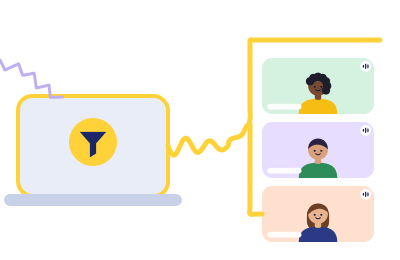
Because the italki Classroom is browser-based, a system-level suppression tool slots underneath it without italki needing to know it exists:
- Install the tool — Krisp is our scored pick for teaching workloads — and point it at your physical microphone.
- On the italki setup screen, select the virtual microphone (Krisp Microphone) by name.
- Test with the household at its honest loudest, not during the one quiet hour.
The layer cleans both the live lesson and — usefully — anything the Classroom records, since the recording captures the already-cleaned signal. Keep suppression to one stage only; the chain guide explains the underwater-voice artifact that stacked filters produce, and language students are the last audience that should be decoding filtered consonants.
italki-specific noise realities
- Community tutors teach from everywhere — that's the platform's charm and its noise profile. If your teaching space is a shared flat or a family home, the home-noise audit is the companion read; schedule and software together beat either alone.
- Your students are noisy too. italki learners call in from commutes, kitchens and dorms. You can't install anything on their phone — but inbound cleanup on your side (a paid-plan Krisp feature) keeps their café out of your concentration, and a friendly "grab headphones if you can" in your lesson policy fixes half of it culturally.
- Trial students judge fast. The marketplace dynamic is identical to every platform: the first lesson is an audition, audio is its opening scene, and quiet slots are where trials belong.
Two teacher tracks, two noise profiles
italki's split between professional teachers and community tutors is also, in practice, a split between audio situations — and the advice differs more than most guides admit:
- Professional teachers tend to run heavier schedules from a fixed desk. Your risks are the boring, cumulative ones: an input level that drifted after an OS update, a fridge you've stopped hearing, six back-to-back hours that expose any flaky link in the chain daily. Your tools are the ritualized device check and a monthly listen to one of your own recordings.
- Community tutors often teach lighter loads from wherever life currently happens — which is charming until the kitchen table meets the dinner rush. Your risk is variance, not drift: the same setup sounding different every day. Your tools are the three-bin audit from the home-noise guide and a suppression layer that makes an unpredictable room predictable. Ironically, the part-timer often needs the software more than the professional with the quiet study.
Both tracks share one economics fact: on a marketplace where students compare freely, audio quality is profile copy you never wrote. It's in every trial, every recording, every "should I rebook" deliberation.
Quick answers
- Does Krisp work with the italki Classroom?
- Yes — the Classroom's setup screen lists every microphone the browser can see, including virtual ones. Select Krisp Microphone there.
- Will noise software interfere with italki's lesson recording?
- No — the recording captures what the Classroom receives, which is the cleaned signal. Consent mechanics are unaffected; both parties still approve.
- My audio meter works on the setup screen but the student hears nothing.
- Classic layer disagreement: the browser has permission but the Classroom picked a different device, or another app grabbed the mic between the check and the lesson. Re-open the device list and reselect by name.
- Chrome, Edge or Firefox?
- Any of the three if you record lessons (that's the supported set for recording, verified 2026-09-20). Pick one, keep it updated, and stop switching — device permissions don't travel between browsers.
Sources. italki Help & Support: "What is italki Classroom and how do I use it?", "Audio recording in italki Classroom", "How do I record my lesson in the italki Classroom?", and "What are the technology requirements for teachers?" — all checked 2026-09-20. No affiliate relationship with italki; we're here for the teachers, not the referral.
Clean lessons, clean recordings, one layer
One trial week of Krisp underneath the italki Classroom covers both the live hour and everything you record. Compare a before/after recording — your students already do.
Rule 1 in action (Classroom Rules): this button is a paid link. If a Krisp subscription follows it, Krisp pays ChalkLine for the introduction, and what you pay stays exactly what krisp.ai charges anyone.