Setups
Webinar host audio, for people who carry the room

A webinar is a lesson with no second chances: one voice, ninety minutes, a hundred strangers, and a replay that outlives the applause. Here's the host-side audio playbook for browser webinar rooms — Livestorm, Demio and their kin.
Why webinar audio is harsher than lesson audio
Tutoring is a dialogue; webinars are broadcasting. Three consequences for your audio:
- There is no feedback loop. A one-to-one student says "sorry, could you repeat that?" A webinar attendee just… leaves. Attrition graphs don't tell you it was the hum.
- Your voice degrades on the clock. Ninety minutes of solo speech is athletic. Fatigue changes your volume and pacing in ways that interact badly with aggressive noise gates — the quieter you get, the more the filter has to decide whether you're signal.
- Everything is recorded. The replay is often the majority of total viewership, and recorded noise is noise forever. We treat that problem separately in lesson recording audio.
Know your room: what the platforms give you
The big teaching-adjacent webinar platforms are browser-based on purpose — attendees click a link, no installs. That shapes your audio options top to bottom. What we verified on their own documentation (2026-09-20):
Livestorm
Runs entirely in the browser, with audio/video device selection available in-room — you can switch devices mid-event via the settings button, which matters the day your microphone dies at minute 40. Livestorm references built-in noise reduction among its features, and — usefully for everyone — hosts a free public mic-test tool on its site that works whether or not you're a customer. Its support docs also publish technical requirements and a pre-event best-practices checklist worth actually reading.
Demio
Also browser-based. Hosts and presenters pick their microphone and output device on a staging screen before clicking "Go On Stage" — a genuinely good pattern, since it makes device mistakes visible while they're still private. Demio's System Check surfaces every detected microphone with a live feedback bar, and its help center dedicates articles to browser and OS device permissions, the usual culprit when a presenter connects and hears nothing.
Whatever platform you host on, the underlying rule from the setup chain holds: the room's device picker decides what attendees hear, so pick devices by name, never "default," and do it on the staging screen, not live.
The host's pre-flight, T-minus 30
- T-30: Enter the room or its system check. Confirm microphone by name, watch the meter through a full spoken paragraph — not "testing, one, two," which is too short to catch a gating problem.
- T-25: Kill microphone competition: close meeting apps, mute notification sounds system-wide. A Slack ping through your own microphone at minute 12 sounds amateur in a way no slide design repairs.
- T-20: If you run a suppression layer (below), confirm the platform's picker points at the virtual microphone and speak through it: household noise on, your voice at presentation volume.
- T-15: Guest speakers join and run the same check. Budget real minutes for this; their audio is your event's audio.
- T-5: Water, door signal to the household, notifications still off, one calm read of your opening line at true volume — it settles both the meter and you.
Noise cleanup for hosts: same tools, higher stakes
The options are the ones scored in the main guide — platform defaults, Krisp, NVIDIA Broadcast — but webinar hosting reweights them:
- The defaults matter more here, not less. Browser rooms apply their own processing, and Livestorm advertises noise reduction of its own. For a solo host in a controlled room, that plus a closed door is often genuinely enough. Test with a dry-run recording before adding layers.
- A dedicated layer earns its keep on event days you don't control. The building's fire-alarm test, the neighbour's landscaping crew, the school holiday you forgot — a host can't reschedule a 300-registrant event around noise the way a tutor reshuffles a lesson. Krisp running underneath the browser room is insurance priced at $8/mo billed annually (verified 2026-09-20) — see the teacher write-up for the full pricing picture and its limits.
- Beware maximum-aggression settings during long talks. As your voice tires and drops, over-eager suppression starts shaving word onsets. If attendees report "clipped" first words in the replay, lower the aggression before blaming the platform.
The ninety-minute voice budget
Long-form hosting has a physiology problem that interacts with software in a way nobody warns you about. As a solo talk progresses, most speakers drop volume and flatten their consonants — fatigue, not style. Two software consequences: your level, set at minute zero when you were fresh and projecting, is now too low, so attendees crank their volume and hear more of whatever noise survives; and gate-style suppression, calibrated against your opening energy, starts treating your tired trailing syllables as borderline noise. The fixes are unglamorous and effective: set your input level against your minute-sixty voice, not your rehearsal voice (do one tired run-through and set levels then); script deliberate water breaks as resets — a hydrated voice holds its floor; and if your platform shows you a live input meter, glance at it during Q&A pauses the way pilots glance at instruments. The audience never notices a host managing their voice; they only notice one losing it.
Guest speakers: the audio you don't control
Your suppression cleans your microphone. Your guest's kitchen renovation arrives untouched. What actually works:
- Send a one-paragraph audio brief with the calendar invite. Quiet room if possible, join five minutes early for a device check, use the room's staging screen. Speakers comply with checklists they receive in writing; they improvise around ones delivered verbally at T-2.
- Use the staging pattern. On Demio-style rooms, a guest's microphone problems can be found and fixed before they're on stage. Never bring a speaker live untested.
- Have a mute protocol, agreed in advance. "If your background goes loud while I'm presenting, mute; I'll cue you back." It's the webinar version of classroom management, and like classroom management it works because everyone knew the rule before the incident.
- Panels: one voice open at a time when noise strikes. Multi-guest rooms multiply background sources; the moderator's mute discipline is the noise cancellation of last resort.
When the platform is the problem
Choppy or robotic audio mid-event is bandwidth, not noise — the same rule as everywhere in this site: suppression can't fix packet loss. Browser webinar rooms are competing for your connection with your slides, your camera and whatever else the household streams. Hosts who care go wired for event days, close every background sync (cloud drives love to pick webinar hour for a full upload), and keep the platform's own troubleshooting page — Livestorm and Demio both maintain good ones — bookmarked before the day they need it at minute 60.
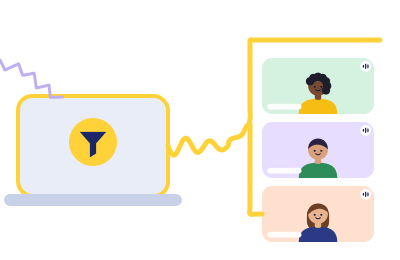
Insurance for the day you can't reschedule
Run Krisp's 7-day trial across a dry-run and one real event. If the replay comes back clean on a day your street wasn't, you've heard the argument.
Trial it before your next event
Rule 1 in action (Classroom Rules): this button is a paid link. If a Krisp subscription follows it, Krisp pays ChalkLine for the introduction, and what you pay stays exactly what krisp.ai charges anyone. Verdicts stay computed, not sponsored.