The Guide
Noise cancellation for online teaching

You can re-explain a grammar point. You cannot re-explain it over a cement mixer. This is the working guide to noise cancellation for teachers, tutors and webinar hosts — what is already built into your classroom, what is worth paying for, and what is worth exactly nothing.
Why teaching audio is its own problem
Most advice about call audio is written for meetings, where six people mumble for an hour and nobody's income depends on being understood. Teaching is different in three ways that change every recommendation on this page.
- You carry the airtime. In a one-to-one lesson you speak for half the hour; in a webinar, nearly all of it. A noise problem on your side isn't an occasional annoyance — it sits underneath every sentence of instruction you deliver.
- Your listeners decode the hard way. Language students, young learners and anyone attending in their second language are doing real cognitive work to parse you. Noise that a native-speaker colleague would shrug off genuinely costs your students comprehension. The consonants that distinguish ship from sheep are exactly the frequencies that fans and traffic eat first.
- Reviews are your storefront. On tutoring marketplaces, a student who couldn't hear you clearly doesn't file a support ticket. They book someone else and sometimes say why, in public, under your profile.
So the bar is higher than "good enough for a stand-up." The good news: the software side of this is mostly solved, a lot of it is free, and none of it requires you to build a studio.
The three noise problems, named
Before choosing tools, separate what you're fighting. Every lesson has three potential noise sources, and they need different answers.
1. Your room
Kids home from school, a flatmate's kettle, the street below. This is the one you can fix directly, with suppression software on your machine. Our teaching-from-home guide covers the household side in detail.
2. Their room
The student's dog, the attendee's café. You cannot install anything on their machine — but two-way (inbound) noise cancellation running on yours can clean what arrives, and classroom habits can prevent half of it.
3. The pipeline
Choppy, robotic or dropped audio is a connection problem wearing a noise costume. Suppression can't fix packet loss. Platforms publish their own diagnostics — Preply's classroom, for instance, has a pre-lesson connection test. Rule it out first.
Layer 0: the suppression you already have
Every browser-based classroom — Preply's, italki's, Cambly's, and webinar rooms like Livestorm's and Demio's — rides on the same browser call machinery, and that machinery ships with basic noise suppression already switched on. It removes steady, boring noise: fan hum, air conditioning, low traffic rumble. For a quiet flat and an ordinary laptop, it is genuinely often enough.
This is the honest starting point, and it costs nothing: run your platform's own device check (Preply and italki both put one in front of every lesson), speak at lesson volume, and listen to what a recording or the test meter gives back. If nothing hums, buzzes or bleeds through, stop here and spend the money on nothing. Nobody pays us for that recommendation, which is rather the point of it.
Where the defaults fail is noise that behaves like speech: children, television, a flatmate's phone call, the neighbour's renovation. Browser-grade suppression either lets it through or, worse, gates your own voice while deciding. That failure mode is the reason the next layer exists.
Layer 1: Krisp — the dedicated cleanup layer
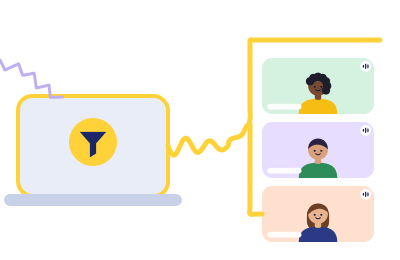
Krisp is a small desktop app that inserts itself between your physical microphone and whatever app is running your lesson. It installs a virtual Krisp Microphone device; in your classroom's device picker — the same menu where you'd choose a headset — you select Krisp Microphone instead, and everything the platform hears has been through Krisp's AI noise removal first. Krisp's own line is that it "works at the audio level" and integrates with every conferencing app; in practice, for a teacher, the point is simpler: if your classroom has a microphone menu, Krisp can sit in it. Browser classrooms qualify, and there's a Chrome extension for browser-only setups. We walk through the lesson-day specifics in Krisp for online teachers.
Two things make it the reference tool for this audience rather than a nice-to-have:
- It handles speech-like noise. The exact category the built-in defaults fumble — kids, TV, other voices — is what Krisp's models were built to separate from you.
- It works on inbound audio too. On paid plans, noise cancellation also applies to what you receive, which is the only software answer to a student calling in from a food court.
What it costs verified 2026-09-20
Checked against krisp.ai's pricing page on 20 September 2026: the individual (Meeting AI) tier starts with a 7-day free trial, no credit card, then Core at $8/month billed annually or $16 month-to-month, with unlimited noise cancellation on paid plans. An Advanced tier ($15/$30) exists, but its extras are aimed at accent conversion and heavier team features most teachers won't miss.
One hedge, because honesty is house policy: Krisp offered a free daily-allowance plan (60 minutes a day) for years. As of our verification date the pricing page leads with the 7-day trial instead, and the free plan survives only in Krisp's help-center documentation — so treat "free forever" as unconfirmed and check what the app itself offers you at signup.
Limits worth knowing before you commit: the full experience is the desktop app (Windows/Mac) — on mobile, Krisp's products are transcription-oriented, so don't plan to teach from a phone with it. And like all suppression, it cleans noise; it cannot invent a good microphone signal or repair a bad connection.
Try it against your loudest hour
The 7-day trial is the whole evaluation: run it across your noisiest regular slot — the after-school one — and listen to a lesson recording before and after. If students stop asking you to repeat yourself, it pays for itself in one retained booking.
Take Krisp’s 7-day trial to class
Rule 1 in action (Classroom Rules): this button is a paid link. Start a paid Krisp plan through it later and Krisp pays ChalkLine for the introduction. Your price won’t move, and the scores below didn’t either — the scoring script ships with this site.
Layer 2: the free heavyweight (with a catch)
NVIDIA Broadcast is the strongest no-subscription cleanup available — AI Noise Removal and Room Echo Removal comparable in day-to-day effect to the paid tools — but it requires an NVIDIA RTX graphics card (NVIDIA's stated floor: GeForce RTX 2060, Quadro RTX 3000 or TITAN RTX; verified 2026-09-20). If your teaching machine is a gaming PC, this is your answer and it costs you nothing new. Note the asymmetry: NVIDIA documents mic-side processing, so unlike Krisp's paid tiers it does nothing about the noise your students send you. We have no affiliate relationship with NVIDIA; it's here because it's good.
If you teach on Linux, a capable open-source suppression ecosystem exists; it's outside this guide's lane, but it's real and free. And your operating system may offer its own voice mode — worth toggling, not worth relying on.
The teaching-fit table
Scores are produced by the weighted model in this site's tools/fit-score.py — criteria chosen for teaching workloads (cleanup strength 25%, browser-classroom fit 20%, student-side noise 15%, long-day reliability 15%, cost 15%, setup friction 10%). Edit the inputs, re-run it, and you'll get these exact numbers; nothing in this table was typed by hand.
Bar length is the computed score out of 10; each segment is a criterion’s score times its weight, taken from the table below.
| Option | Cleanup | Browser fit | Student side | Long day | Cost | Friction | Score | Verdict |
|---|---|---|---|---|---|---|---|---|
| Krisp (desktop app) | 9 | 9 | 8 | 8 | 6 | 8 | 8.2 | The one to trial first if noise is costing you bookings |
| Platform + browser defaults | 5 | 10 | 3 | 8 | 10 | 10 | 7.4 | Where every teacher should start; often enough |
| NVIDIA Broadcast | 8 | 8 | 3 | 7 | 9 | 5 | 7.0 | Best free pick — but only if you already own an RTX GPU |
| OS-level mic processing | 6 | 7 | 3 | 7 | 10 | 6 | 6.5 | A supplement, not a plan |
Read the second row carefully before the first: the free defaults score 7.4 not because they're brilliant but because they're free, frictionless and already where your lessons happen. Krisp's lead is earned entirely in the two columns that decide bad days — cleanup strength and the student side.
What this guide deliberately leaves out
- Hardware. Plenty of sites will sell you microphones and headsets. ChalkLine covers the software side only — it's the part you can fix tonight for free-to-$8, and the part most teaching advice gets vaguest about.
- Generic meeting-app settings tours. Those apps' own suppression toggles are documented to death elsewhere. Where a teaching platform runs on one of them — Outschool's classes run on Zoom, for example — our platform note stays on the teaching side: managing a grid of eight nine-year-olds is not a settings problem.
- Room treatment. Rugs and panels are real physics and someone else's beat. Software first; it travels with you between flats.
The ten-minute setup, in order
- Run your platform's device check (Preply and italki show one before every lesson; Livestorm even hosts a free public mic test) and fix the boring things first: right microphone selected, nothing else using it.
- Record 60 seconds at lesson volume during your noisiest realistic hour. This recording is your baseline; every later decision is judged against it.
- If the baseline is clean — stop. Revisit when your circumstances change.
- If steady hum is the problem, confirm the platform/browser suppression is on and re-record. Usually solved.
- If voices, kids or TV bleed through, start the Krisp trial (affiliate link, disclosed above) — or NVIDIA Broadcast if you own an RTX card — select the virtual microphone in your classroom's device picker, and re-record the same 60 seconds.
- Keep the before/after pair. When a student compliments the change, you'll know it wasn't placebo.
The full routine, including browser permissions and the order of operations that avoids device-picker surprises, lives in the tutor audio setup guide.
Questions teachers actually ask
- Will noise cancellation remove my student's background noise?
- Only inbound-capable tools running on your machine can — Krisp's paid plans do this. Nothing you install affects what other attendees hear from that student in a group class; for that, classroom management (mute norms, push-to-talk habits) remains the real tool.
- Does Krisp work inside Preply's or italki's classroom?
- Yes — both classrooms are browser-based and both expose a microphone picker in their pre-lesson checks. Choose "Krisp Microphone" there. Platform-specific walkthroughs: Preply, italki.
- Will it slow down my old laptop?
- Krisp is light by design and fine on ordinary teaching laptops. NVIDIA Broadcast leans on the GPU, which matters if you also share slides or run recording software. Either way, the trial period is your benchmark — watch the fan, not the marketing.
- Is the built-in suppression enough for ESL conversation lessons?
- In a controlled room, yes. The moment your environment includes other humans awake, the defaults' weakness against speech-like noise starts costing comprehension — and ESL students pay that cost double.
- What about echo — students hearing themselves back?
- Different problem, different machinery: that's echo cancellation, and your platform handles it automatically. If echo appears, it's almost always a speakers-plus-open-mic situation on one end, not a suppression failure. Ask who's on laptop speakers.
Sources & verification. Krisp pricing and mechanics: krisp.ai and krisp.ai/pricing, checked 2026-09-20. NVIDIA Broadcast requirements: nvidia.com Broadcast app page, checked 2026-09-20. Platform classroom facts: Preply, italki, Outschool, Livestorm and Demio help centers, all checked 2026-09-20 — article-level citations sit on each platform note. Where a vendor's public docs and its marketing disagree, we print the hedge, not the hope.